
Best Settings for Meccha Chameleon : Mouse, Graphics & Keybinds for Winning
Optimize your Meccha Chameleon setup for competitive play. Best mouse sensitivity, graphics settings, keybind recommendations, and pro-level configuration tips.
- •Lower mouse sensitivity for precise eyedropper sampling : high DPI but low in-game sens
- •Turn off anti-aliasing and set shadows to Low for higher FPS and better hider visibility
- •Rebind the pose wheel (R) and paint menu (F) to mouse side buttons for faster access
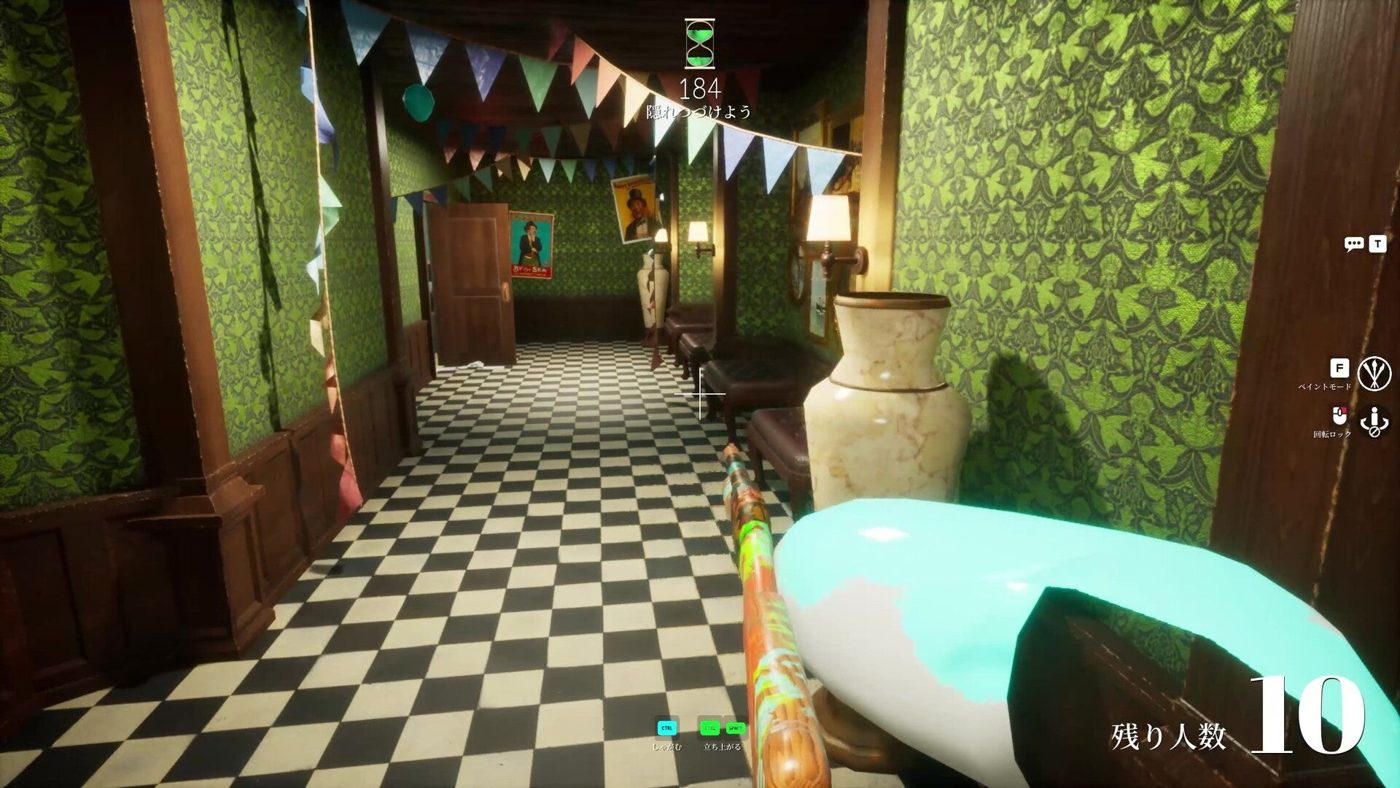
Mouse Settings, The Most Important Change
Most players use default mouse sensitivity. This is a mistake. to change:
For Precise Painting (Hider)
| Setting | Recommendation | Why | |---------|---------------|-----| | DPI | 800-1600 | High enough for fine control, low enough to avoid jitter | | In-game sensitivity | Medium-Low | You need smooth, precise movements for the eyedropper and brush | | Polling rate | 1000Hz | Reduces input lag |
The eyedropper requires pixel-perfect accuracy. If your crosshair jumps even slightly, you'll sample the wrong color. Lower sensitivity = more precision = better camouflage.
For Fast Scanning (Seeker)
Seekers benefit from higher sensitivity for quick 360° sweeps. If you main Seeker, bump sensitivity up ~20% from your Hider settings. Or keep it low and train smooth, wide arm movements.
Graphics Settings, See Hiders Better
| Setting | Recommended | Why | |---------|------------|-----| | Texture Quality | High | You need to see surface details to spot imperfect camouflage | | Shadow Quality | Low | Shadows are expensive, and turning them off (V key) already disables yours | | Anti-Aliasing | Off | Smooth edges make hiders blend in better. Jagged edges help you spot them | | Ambient Occlusion | On (if FPS allows) | Adds depth that reveals flat-painted hiders on walls | | Post Processing | Low | Motion blur hides subtle movement, turn it off | | Resolution Scale | 90-100% | Only lower if you need FPS. Image clarity is critical for spotting hiders |
The meta trick: Turn anti-aliasing OFF as a Seeker. Jagged edges create visual noise that makes perfectly camouflaged hiders more visible against smooth surfaces.
Keybind Optimization
The default keybinds work, but pros customize them for speed:
| Action | Default | Recommended | Why | |--------|---------|------------|-----| | Paint Menu | F | Mouse Button 4 (side) | Faster access without moving left hand | | Pose Wheel | R | Mouse Button 5 (side) | Same, pose first, paint second | | Eyedropper | Space | Keep as Space | Already well-positioned | | Clone | Q | Keep as Q | Easy reach | | Free Cam | 4 | Keep as 4 | Used less frequently |
Pro Settings Checklist
- [ ] Mouse DPI: 800-1600
- [ ] In-game sensitivity: Medium-Low
- [ ] Anti-aliasing: Off (Seeker) / On (Hider)
- [ ] Shadows: Low
- [ ] Texture Quality: High
- [ ] Paint Menu + Pose Wheel on mouse side buttons
- [ ] Push-to-talk enabled (open mic = death)
Related Guides
This guide was compiled from multiple public sources. We cross-reference with 3+ sources before publishing.
More Meccha Chameleon Guides
Meccha Chameleon Updates 2.6 & 2.7 : Egypt Map, HIKAKIN Museum & Clone Controversy
Two major Meccha Chameleon updates dropped. Egypt and HIKAKIN Museum maps, random map toggles, Penguin Hotel randomization, and a clone game causing controversy.
Meccha Chameleon July Patch Roundup : New Mode, Osaka Rework & Hunter Ammo Limits
Every Meccha Chameleon update in July 2026. Reverse Chicken Race mode, hunter bullet limits, Osaka map rework, new rotation mechanics, and the upcoming collaboration map.
Meccha Chameleon vs Among Us vs Prop Hunt : Which Hide & Seek Game Is Best in 2026?
Complete comparison of the top 3 hide-and-seek multiplayer games in 2026. Meccha Chameleon vs Among Us vs Prop Hunt : gameplay, skill ceiling, price, player count, and which one is right for your group.